Managing Submissions
View and manage responses collected from your published forms.
Finding Your Submissions
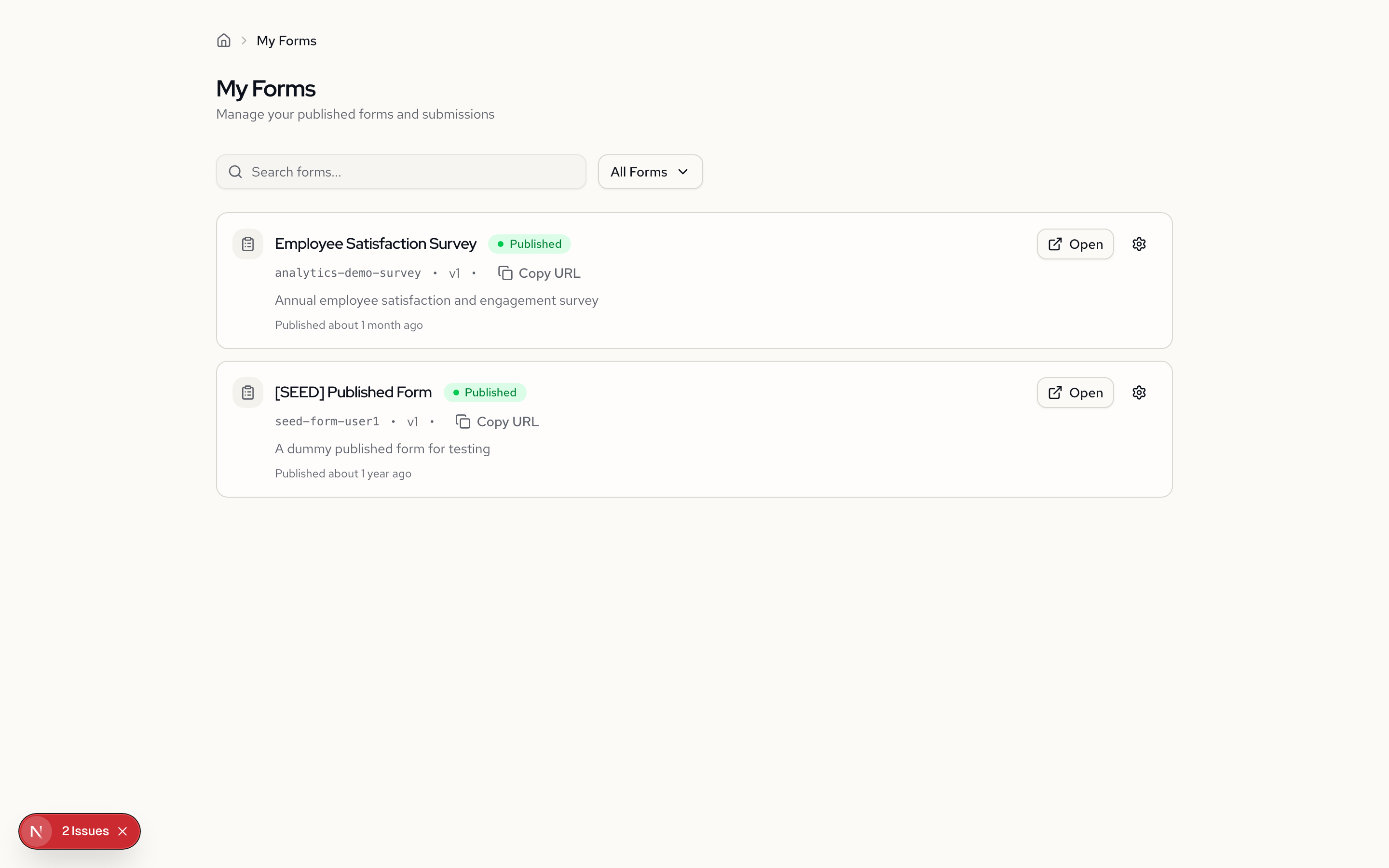
- Open the Forms page from the sidebar.
- Click the form you want to review.
The form detail page opens on the Submissions tab by default.
Viewing Submissions
The submissions table shows all responses in reverse chronological order.
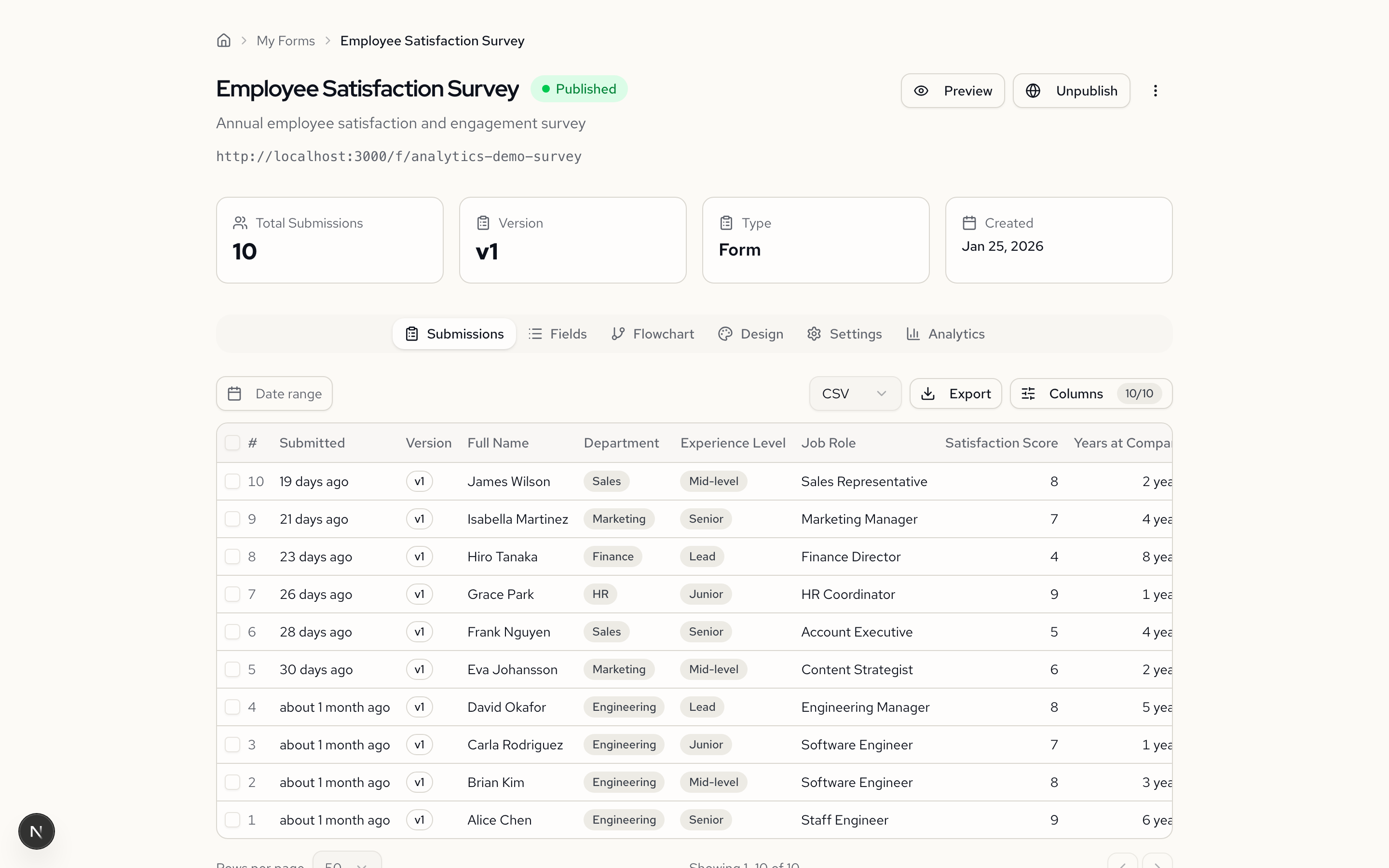
Each row shows the submission date and a summary of field values. Computed values (if any) appear alongside the raw answers.
Submission Details
Click any row to see the complete response.
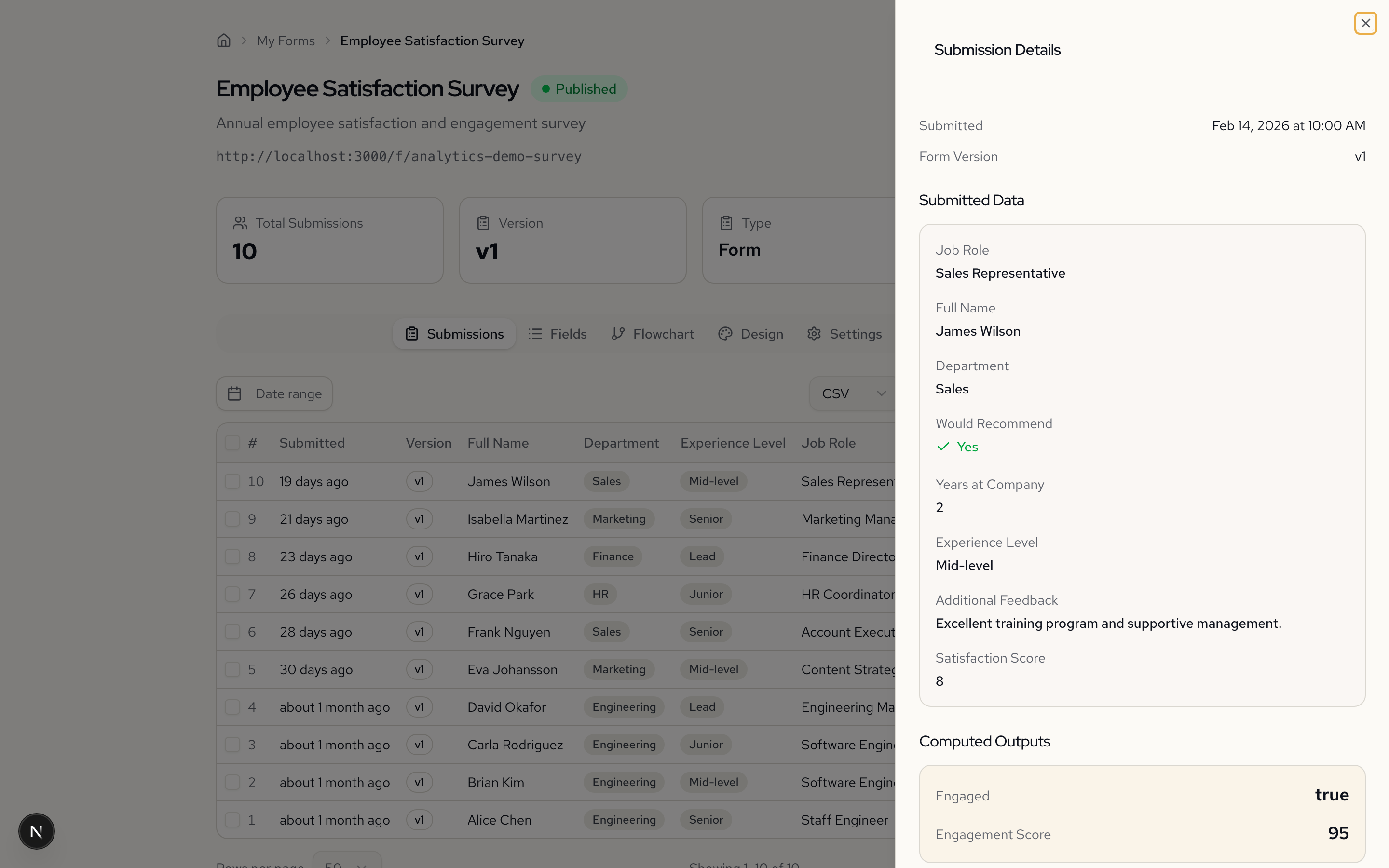
The detail view includes:
- All answers provided by the user
- Calculated values from computed fields
- Conditional fields that were shown/hidden based on their answers
Exporting Data
Export your submissions for use in other tools.
- Click Export in the toolbar.
- Select CSV or JSON.
- CSV can be opened in Excel, Google Sheets, or any spreadsheet application.
- JSON preserves the full data structure including nested fields and arrays.
The export includes all submissions and all fields.
Deleting Submissions
To remove a submission:
- Select the submission
- Click Delete
- Confirm the deletion
Deleted submissions cannot be recovered.
Data Privacy
- Submissions are stored securely
- Only the form owner can view responses
- Export data to comply with data retention policies