Publishing Forms
Once your form is ready, publish it to start collecting responses.
Publishing Options
Public Link
Generate a shareable link that anyone can access to fill out your form.
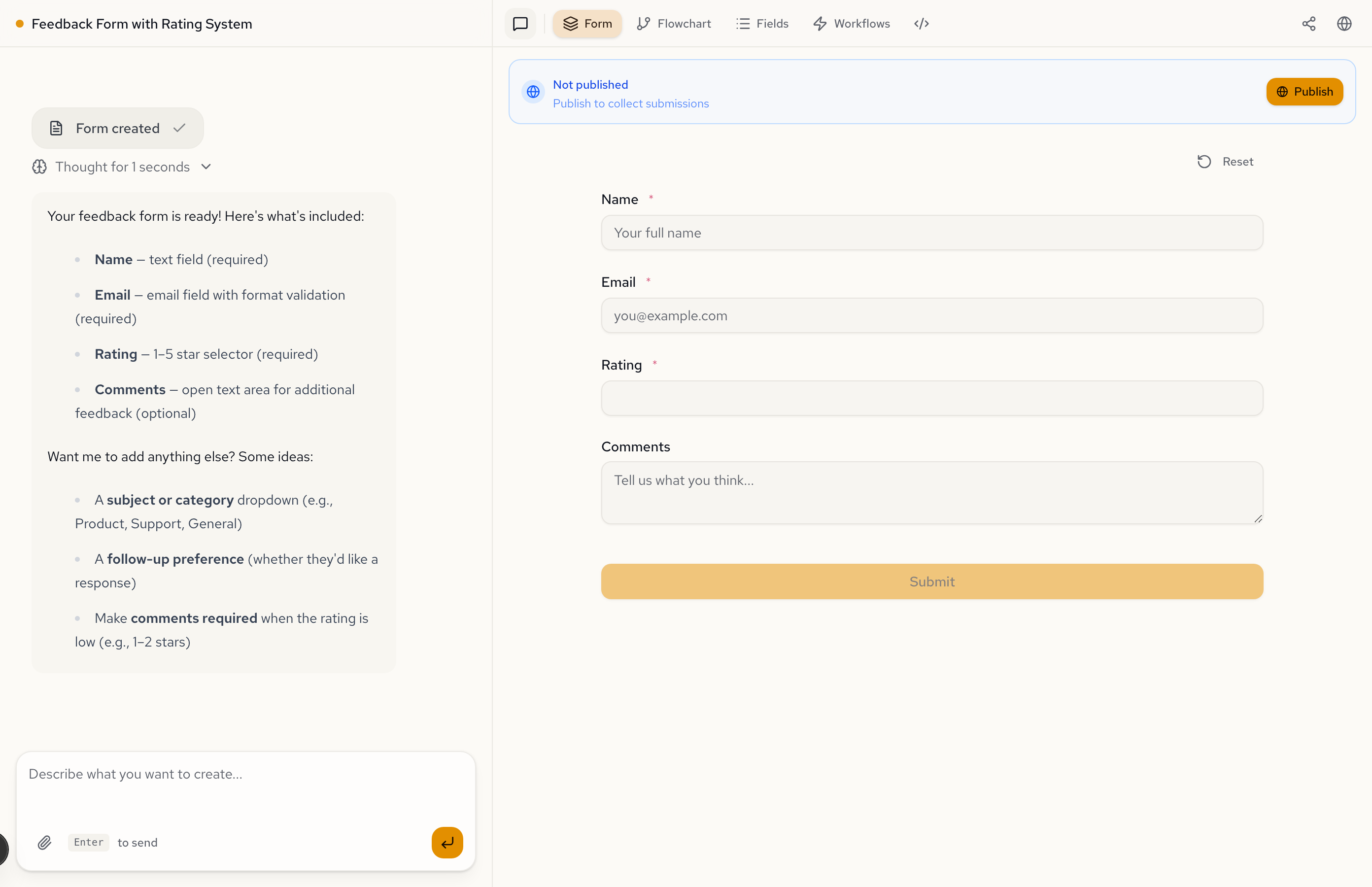
- Click the Publish button in the top bar.
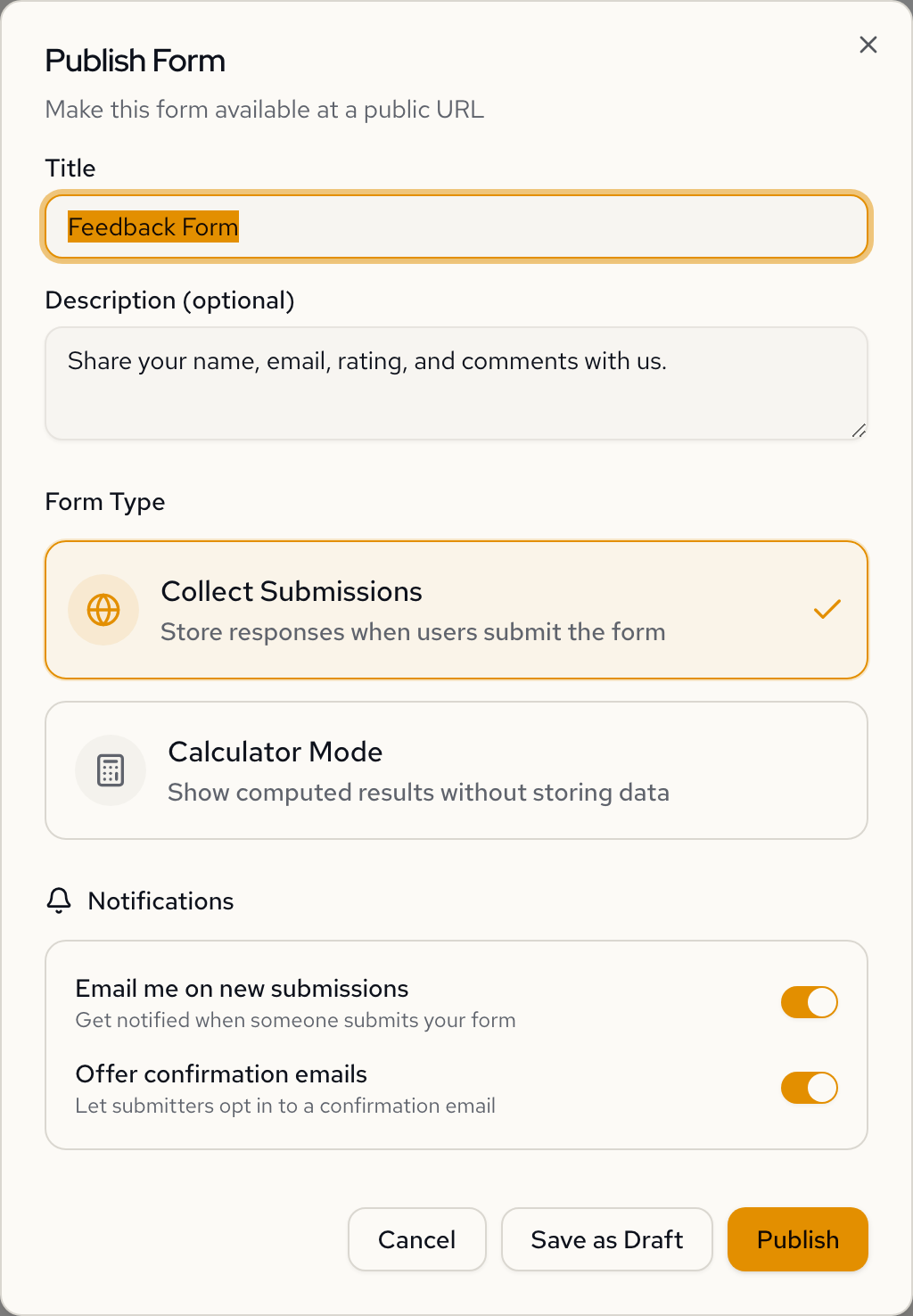
- Fill in the title, description, and form type, then click Publish.
- Copy the generated URL to share your form.
The public URL follows this format:
https://app.formidable.software/f/{form-id}
Embedding
Embed your form directly into your website or application. Click the ... menu on the form detail page and select Copy embed code to get a ready-to-paste snippet.
See the Embed documentation for the full setup guide, configuration options, and event handling.
Managing Published Forms
Updating a Published Form
Changes you make to a form after publishing will automatically be reflected in the published version. Users who open the form will always see the latest version.
Unpublishing
To stop accepting responses:
- Click the Share button
- Select Unpublish
The public link will no longer work, and users will see a message that the form is unavailable.
Unpublishing a form immediately disables the public link. Any users currently filling out the form will be unable to submit.
Automate with Webhooks
After publishing, you can set up webhooks to push submission data to external systems automatically. See Webhooks & Workflows.
Best Practices
- Test before publishing - Fill out your form yourself to verify it works as expected
- Share the link carefully - Anyone with the link can submit responses
- Monitor submissions - Check regularly for new responses