Creating Forms
Create forms by describing what you need in natural language. The AI assistant will generate a form based on your requirements.
Starting a New Form
- Open the Formidable app
- Click New Form or start a new conversation
- Describe what kind of form you need
Writing Effective Prompts
Be Specific About Fields
Instead of:
"Make a contact form"
Try:
"Create a contact form with name, email, phone number, and a message field. Make the phone number optional."
Describe Dynamic Behavior
"Create an order form where the shipping address fields only appear if the user selects 'Ship to different address'"
Specify Validation Requirements
"Create a registration form. The password must be at least 8 characters and the email must be valid."
Previewing Your Form
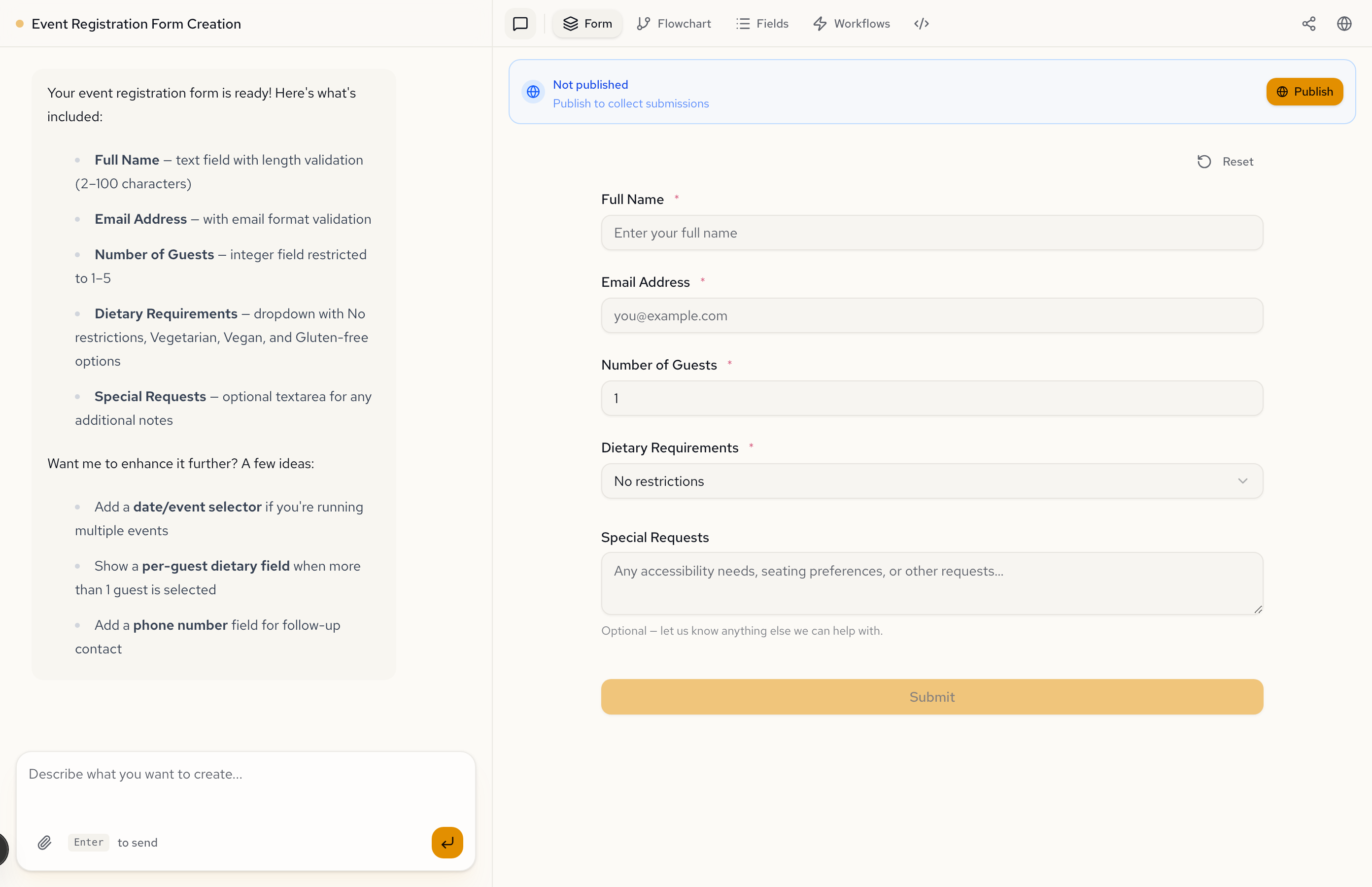
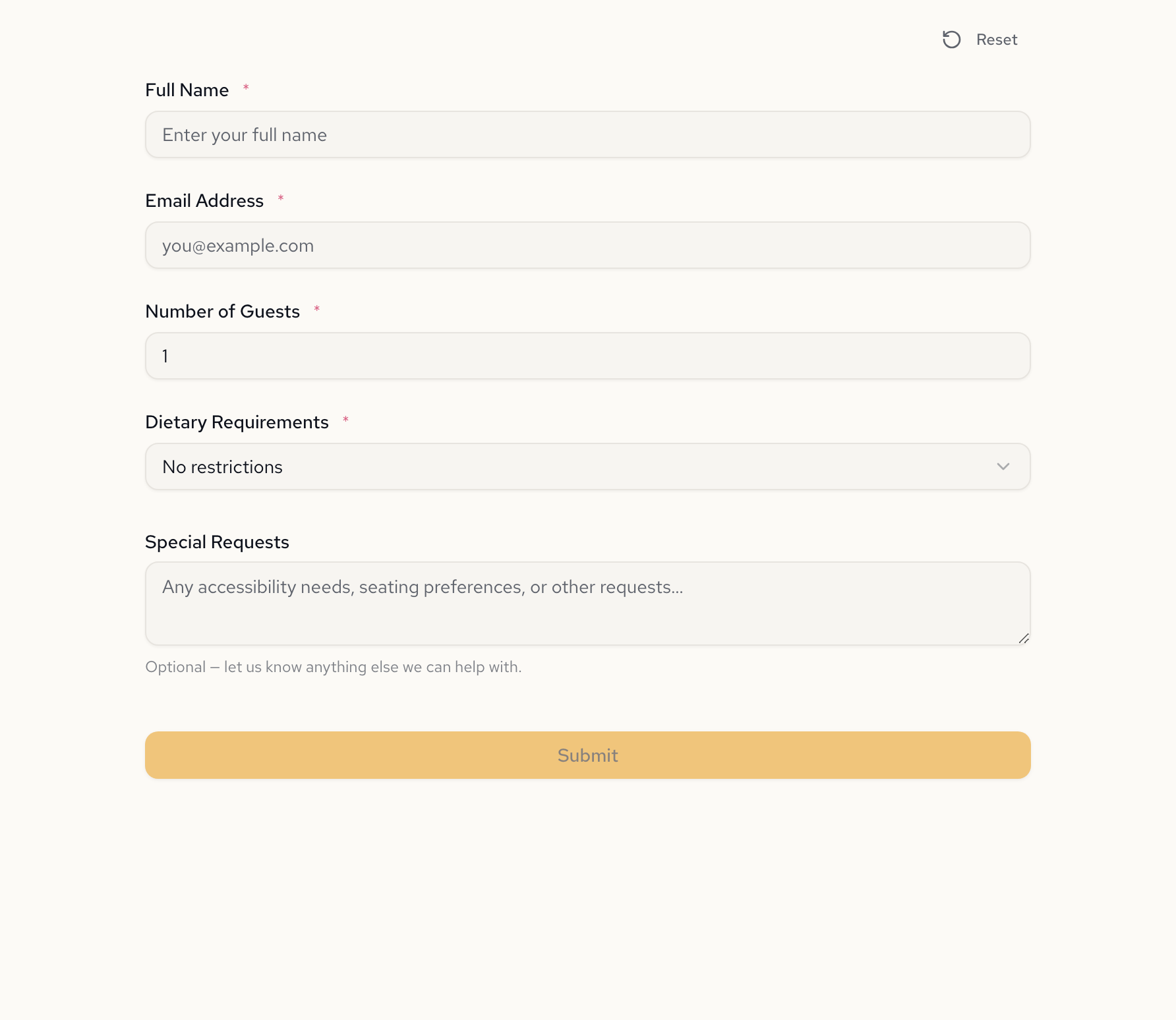
As the AI generates your form, you'll see a live preview in the right panel. This shows exactly how your form will appear to users.
Making Changes
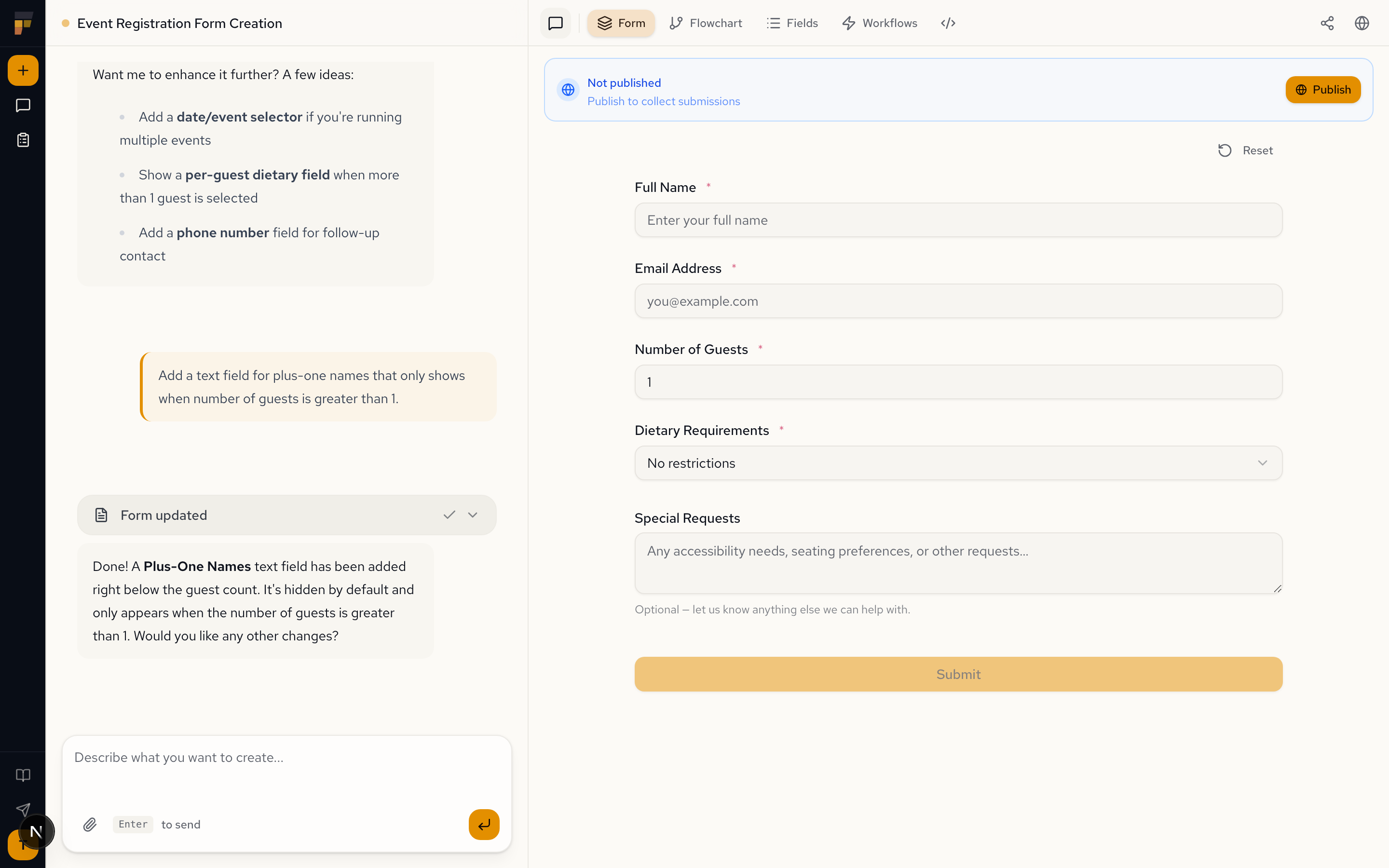
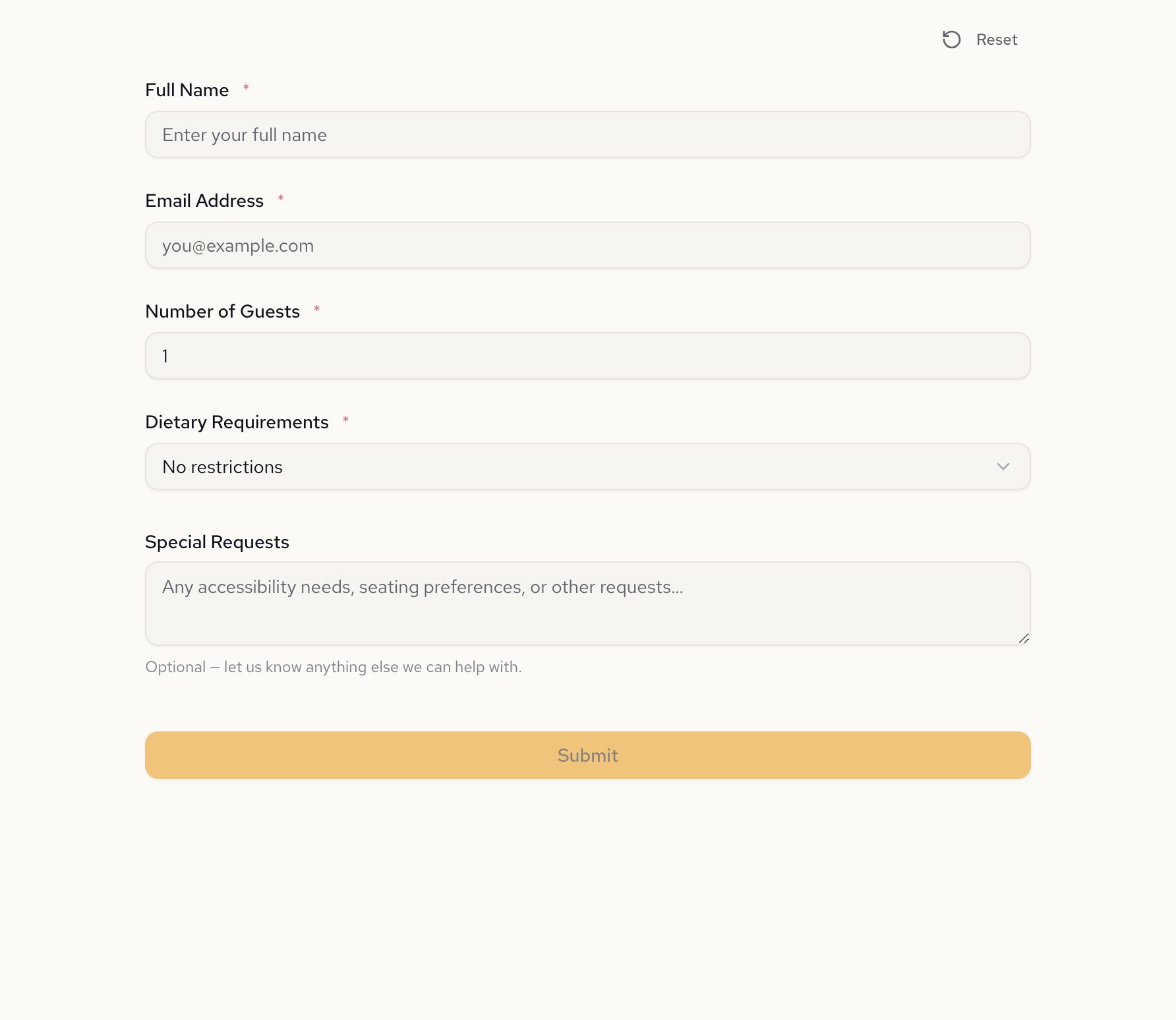
Ask for modifications in natural language:
- "Add a date of birth field after the name"
- "Make the phone number required"
- "Add a dropdown for country selection with US, Canada, and UK"
- "Split this into two pages"
Form Types
Single Page Forms
Simple forms that display all fields at once. Best for short forms with few fields.
Multi-Page Wizards
Complex forms split across multiple steps. The AI can create these when you:
- Have many fields to collect
- Need to group related information
- Want to show different sections based on previous answers
"Create a loan application wizard with separate pages for personal info, employment details, and financial information"
- Start simple and add complexity gradually
- Use the preview to verify the form looks correct
- Ask the AI to explain any behavior you don't understand